Instead of manually requesting another appointment after every groom, set up a recurring mobile dog grooming schedule with your groomer and mirror the confirmed visits in your calendar. A repeating calendar event organizes your reminders; it does not reserve an appointment with Fluffypetwash or another provider.
- Build your recurring mobile dog grooming schedule around appointments your groomer has confirmed, not calendar reminders alone.
- Fluffypetwash provides mobile pet grooming; ask directly about recurring appointments before creating a repeating calendar series.
- Every 6 weeks means every 42 days, not the same date each month.
- Use Google Calendar for reminders, and distinguish confirmed visits from dates you still need to request.
Why this matters
A recurring reminder is not a recurring booking. Your calendar controls when you receive an alert. Your groomer controls which appointments are accepted and how changes are handled.
Fluffypetwash mobile pet grooming is best for owners seeking a service that comes to their location. For recurring visits, confirm the arrangement directly rather than assuming a calendar invitation creates it.
A 6-week interval is a scheduling choice, not a universal grooming recommendation. Ask your groomer whether that interval suits your dog's coat, condition, and care between visits. Veterinary concerns belong with your veterinarian.
For your 2026 schedule, separate three things: the appointment agreement, the calendar entry, and the reminder. Keeping those roles distinct prevents a neatly organized calendar from becoming a list of unconfirmed visits.
Before you start
- Get a confirmed starting appointment. Have your dog's details, service address, agreed service, and the groomer's confirmation accessible. Ask whether future visits can repeat or require separate approval.
- Choose your calendar and access. The instructions below use Google Calendar in a desktop browser. You need permission to create and edit events on the calendar you select.
- Resolve the hidden gotcha: rescheduling rules. Ask whether a moved appointment changes the entire sequence or only that visit. Also confirm whether the appointment uses an exact start time or an arrival window.
Keep gate codes and other sensitive access details out of broadly shared calendar descriptions. Record only what the people viewing the calendar need, and send private instructions through an agreed channel.
Choose your recurring booking arrangement
There are two useful arrangements. Provider-confirmed recurring appointments are best for owners whose groomer agrees to an ongoing sequence; request reminders are best when each visit needs separate approval.
| Arrangement | Best for | Advantage | Limitation |
|---|---|---|---|
| Provider-confirmed recurring appointments | Owners with an agreed repeating schedule | Future visits follow an explicit agreement | Exceptions still need confirmation with the groomer |
| Recurring request reminders | Owners who must request each appointment | Keeps the next booking task visible | Does not reserve a grooming visit |
Neither arrangement requires a booking integration. Do not connect an automation that sends appointment requests unless the provider supports that process and you understand what counts as acceptance.
For Fluffypetwash mobile pet grooming, ask about recurring scheduling directly. Treat only the dates or repeating arrangement the provider expressly accepts as confirmed.
Booking agreement
- Ask your groomer whether an every-6-week arrangement suits your dog and can be scheduled.
- Provide the starting appointment and your preferred day or arrival window. Distinguish preferences from requirements.
- Ask which future dates are accepted. If the provider confirms an ongoing arrangement, clarify its scope and exceptions.
- Confirm how to move, cancel, or pause a visit. Ask whether you need to acknowledge each appointment separately.
- Save the response somewhere you can retrieve it when updating your calendar.
Expected result: You can identify which visits are confirmed, which are requests, and how the provider handles changes. If that distinction remains unclear, create request reminders rather than appointment events.
Set up your calendar sequence
Repeat interval
The following steps use the English-language desktop version of Google Calendar. Use a confirmed appointment as the starting point; if you are creating a booking task instead, label it as a request.
- Open Google Calendar, select Create, then Event.
- Enter a clear title, such as Dog grooming — confirmed. Use Request next dog grooming appointment for a booking task.
- Set the agreed date and time. If the groomer gave you an arrival window, record the window rather than inventing an exact start time.
- Select Does not repeat, then Custom.
- Under Repeat every, enter 6 and choose weeks. Check that the selected weekday matches your starting appointment.
- Under Ends, choose the end condition that matches the agreement. For individually confirmed dates, stop the series at the last confirmed appointment.
- Select Done. Check the calendar you are saving to before continuing.
Expected result: The event repeats every 6 weeks on the intended weekday, with an end condition that reflects the actual booking arrangement.
Every 6 weeks is every 42 days. It is not monthly, every other month, or the same numbered date each month. Starting on January 6, 2026, the next dates are February 17, 2026, and March 31, 2026.
Those are interval examples, not offered appointments. Compare your generated dates against your groomer's agreement before relying on them.
Appointment details and notifications
- Add the agreed service address in Location. Include the unit or building detail needed to identify the destination, without publishing private entry credentials.
- In Description, record the dog's name, agreed service, arrival window, confirmation status, and how to request a change.
- Select Add notification. A reminder 1 day before the appointment is a practical starting setting; adjust it to your preparation needs and the provider's stated requirements.
- Select Save. Open the saved event and inspect a later occurrence to verify the interval and details.
- Check that notifications are permitted on the device where you expect to receive them.
Expected result: Your calendar contains a clearly labeled appointment series with usable details and a notification you can receive. Saving an event still does not send a booking request or obtain provider approval.
For the calendar-specific walkthrough, use the guide to adding your mobile grooming appointment to Google Calendar.
Verify the handoff before relying on automation
A correct repeat rule is only part of the workflow. The appointment agreement and calendar must describe the same visit.
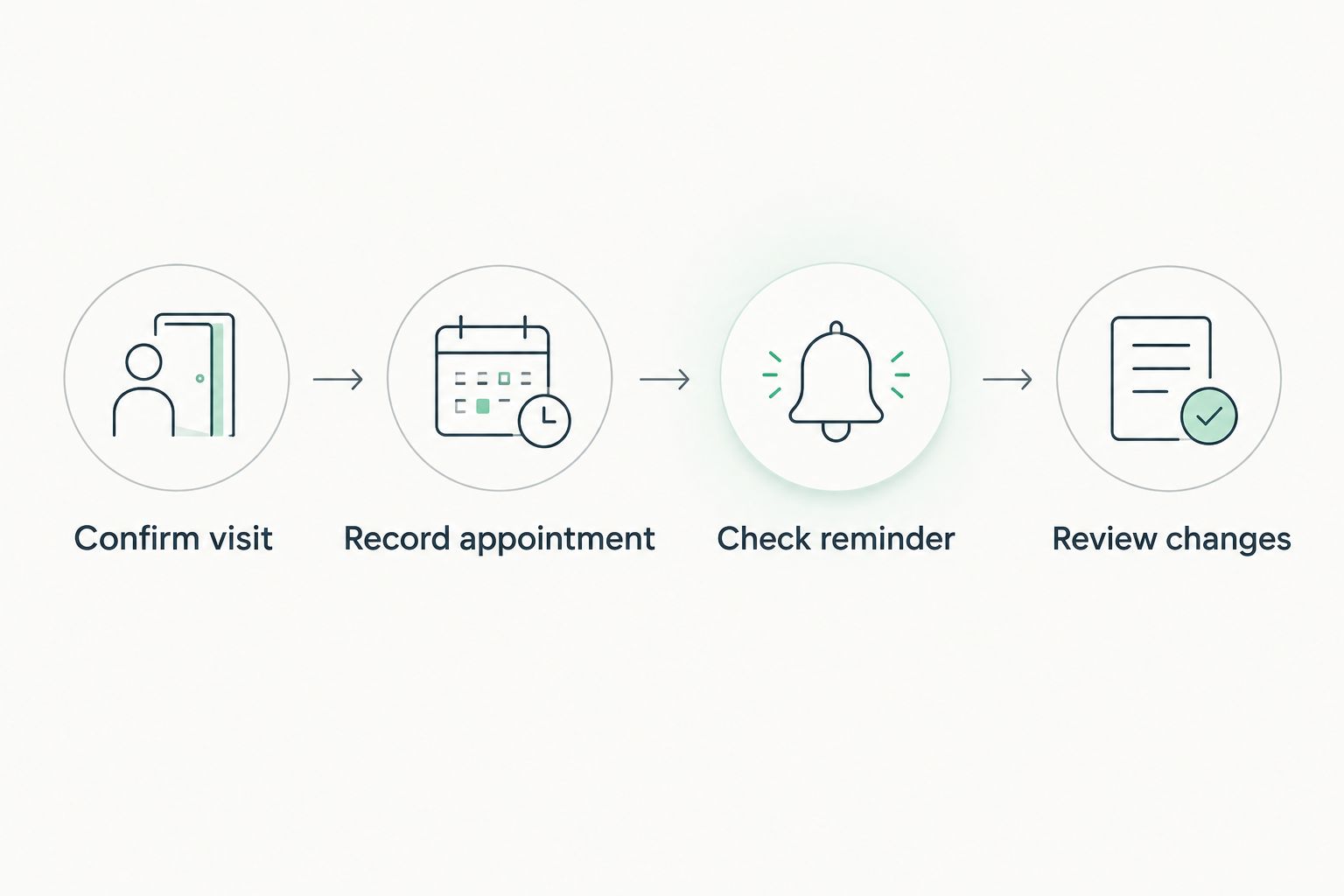
Use this sequence after setup and whenever a date changes:
- Confirm visit: Check the provider's response for the date, address, and arrival arrangement.
- Record appointment: Save the accepted visit, not merely your preferred date.
- Check reminder: Verify the calendar, notification, and device settings.
- Review changes: Check whether a moved visit affects only that appointment or the ongoing sequence.
The expected result is a calendar that reflects the agreement, rather than a calendar that silently substitutes for it. Confirmation comes before automation.
For a 2026 household calendar, give each dog an identifiable event title. A generic grooming label becomes ambiguous when pets have different appointments, services, or handling instructions.
Do not add your groomer as a calendar guest unless that is an agreed communication method. An invitation is not a substitute for the provider's booking process, and an unanswered invitation is not confirmation.
Update the workflow whenever an appointment moves
A moved appointment creates a decision: preserve the original sequence or restart the interval from the new visit. Neither choice is automatic merely because you changed one calendar event.
Single-visit change
Best for: A one-time exception when the groomer confirms that later appointments remain unchanged.
- Obtain confirmation of the replacement appointment before editing your calendar.
- Open the affected event, select Edit, and change the date or time.
- Select Save, then choose This event when asked which recurring events to update.
- Inspect the next occurrence to verify that it stayed on the original schedule.
Expected result: Only the moved visit changes. The remaining sequence retains its original dates, matching the provider's agreement.
The advantage is that one exception does not disturb later appointments. The limitation is that the gap before or after the moved visit will no longer be exactly 6 weeks.
Restarted sequence
Best for: A new ongoing interval that the groomer has expressly accepted.
- Confirm the new starting date and the future arrangement with your groomer.
- Open the first event that needs changing and select Edit.
- Update its date and repeat settings. Select Save, then This and following events when that scope matches the agreed change.
- Inspect the first changed visit and a later occurrence. Remove any separate entries that now duplicate the confirmed appointments.
Expected result: The revised series follows the newly agreed starting point without leaving a second, conflicting sequence.
Restarting keeps the new interval consistent, but it also changes future calendar dates. Never apply that change to later appointments without checking with the provider first.
Troubleshooting
The calendar shows a visit the groomer has not confirmed
Treat the entry as a request, not an appointment. Rename it clearly and contact the provider through the normal booking channel. Change the title to confirmed only after receiving acceptance.
The dates drift away from an every-6-week interval
Open the repeat settings and check that the rule uses weeks, not months. Compare consecutive dates: a 6-week interval is 42 days. If one visit was intentionally moved, check whether later dates were meant to stay fixed.
A reminder never appears
Check the event's notification settings, the calendar account on your device, and the device's permission to display notifications. Also check that the event was saved to a calendar you actually use. Do not assume a provider text message will replace your own reminder.
Moving one visit changes later appointments
Inspect which dates changed and compare them with the provider's agreement. Correct the affected entries, using This event for a single exception. Avoid creating another complete series before removing the conflicting one.
Two grooming events appear for the same visit
Look for a manually created series alongside an imported confirmation or shared-calendar entry. Keep the entry you intend to maintain and remove the duplicate after checking its details. Duplicate events can produce conflicting reminders even when there is only one appointment.
Customize your workflow
Make your 2026 grooming calendar useful for the person handling the visit, not just the person who created the event. Include who will present the dog, where the handoff happens, and which instructions have been agreed with the groomer.
For multi-pet households, confirm each animal's appointment separately unless the provider explicitly groups them. A shared household reminder can help with preparation, but it does not establish that every pet is booked.
Keep the description concise. Store changing access information through the agreed private channel, and update the calendar when the address or responsible person changes.
Review the interval with your groomer when your dog's care needs change. A repeating rule is easy to preserve long after the original reason for it has changed. Let the care plan determine the calendar, not the reverse.
FAQ
How do I set up a recurring mobile dog grooming schedule?
Agree on the interval and appointment arrangement with your groomer, then record the confirmed visits in your calendar. Set the repeat rule to every 6 weeks only when that matches the agreement.
Does a repeating Google Calendar event automatically book my groomer?
No. A repeating Google Calendar event creates calendar entries, not provider-approved appointments. Use your groomer's booking process to obtain confirmation.
Is every 6 weeks the right grooming schedule for my dog?
An every-6-week schedule is not suitable for every dog. Ask your groomer to recommend an interval based on your dog's coat and care needs, and consult your veterinarian about medical concerns.
Can I automatically rebook with Fluffypetwash?
Ask Fluffypetwash directly whether recurring appointments can be arranged. Create a repeating appointment series only after the provider confirms the arrangement; otherwise use reminders to request each visit.
Should I choose monthly or every 6 weeks in my calendar?
Choose every 6 weeks when that is the interval you agreed with your groomer. Monthly recurrence follows calendar months and does not produce a consistent 42-day gap.
What happens to future appointments if I move one grooming visit?
Future appointments depend on the arrangement you confirm with your groomer. Use This event for a single calendar exception, and change later events only when the provider accepts the revised sequence.
What should I do when my recurring grooming schedule pauses?
Confirm the pause with your groomer and update the affected calendar entries. Agree on a restart date before creating a new confirmed series.
One last thing
The most useful recurring event can be a booking task, not an appointment. If your groomer confirms visits individually, a clearly labeled request reminder keeps the process moving without pretending the next visit is reserved.
Before closing your calendar, open the next occurrence and ask: is this a confirmed visit, or a reminder to arrange one? The title should answer immediately.