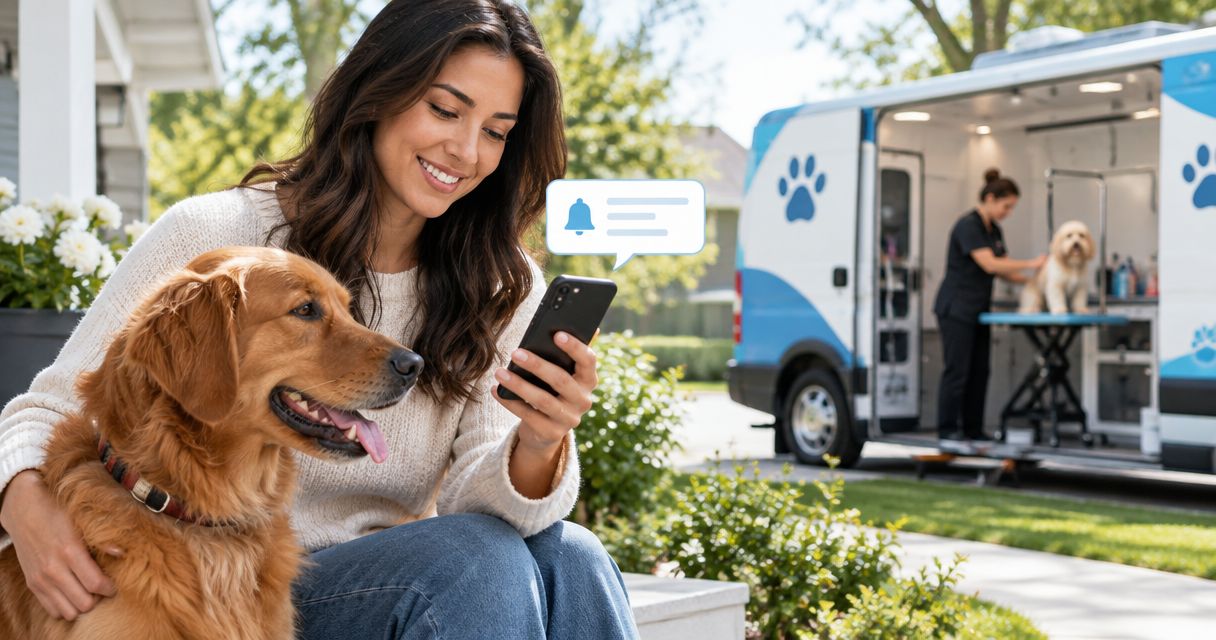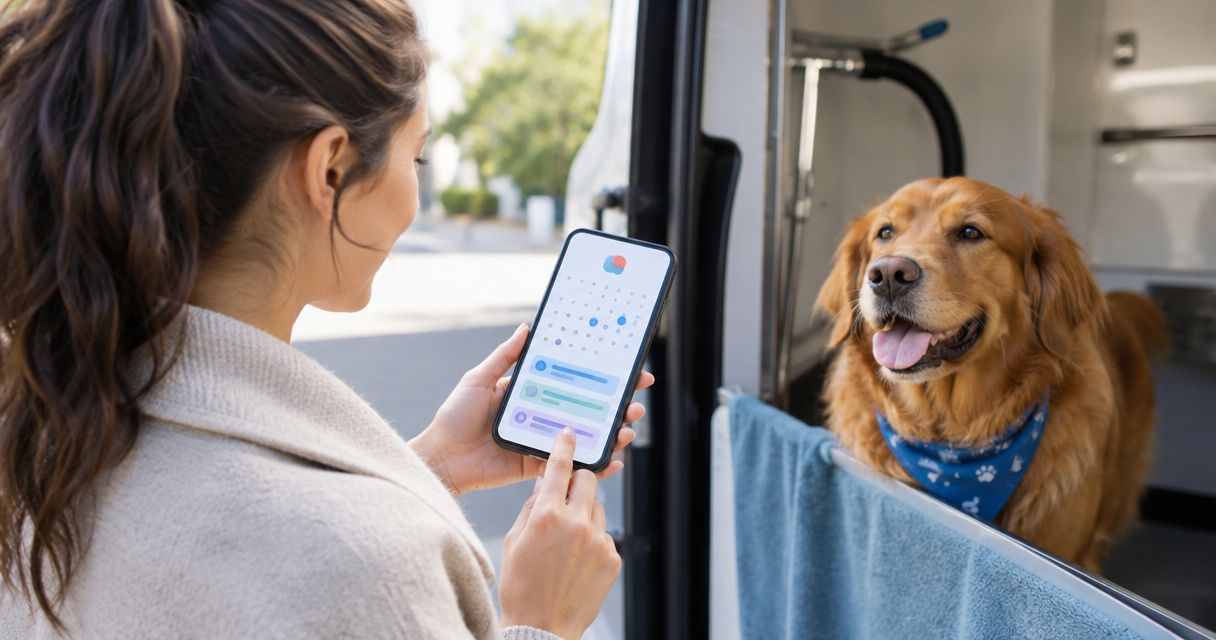
Instead of searching messages for your groomer's arrival time, add your confirmed mobile dog grooming appointment to Google Calendar and set reminders for getting your dog ready. Create an event with the confirmed date, arrival window, service address, and preparation notes; the calendar entry records your booking but does not make or change it.
- To add mobile dog grooming appointment to calendar, create a Google Calendar event using your groomer's confirmed details.
- For Fluffypetwash appointments, a manually verified calendar event is best for owners managing one confirmed grooming visit.
- Use appointment reminders for preparation; use recurring events only for a schedule your groomer has confirmed.
- Editing Google Calendar does not reschedule your grooming appointment with the provider.
Why this matters
A mobile grooming appointment has two separate records: the provider's booking and your personal calendar entry. The provider's confirmation determines the appointment; Google Calendar helps you remember it. A calendar event alone is not evidence that a groomer has accepted a booking.
Fluffypetwash is a mobile pet grooming service. For a 2026 appointment, copy the confirmed details into your calendar rather than filling gaps with assumptions about arrival times, visit length, or preparation requirements.
The workflow below uses Google Calendar in a desktop browser. Keep your appointment confirmation open beside it so you can check each field before saving.
Before you start
- Account and access: Sign in to the Google account whose calendar you actually check. If you use a shared household calendar, make sure you have permission to add events to it.
- Appointment materials: Have the confirmed date, time or arrival window, service address, and any preparation instructions. Ask the provider about anything missing before treating it as settled.
- The easy-to-miss gotcha: An arrival window is not the same as grooming duration. Do not turn a window into a guaranteed start time or assume the visit finishes when that window ends.
Choose your event method before entering details. A repeating calendar entry is convenient, but it also repeats any incorrect assumptions you put into the first event.
| Calendar method | Best for | Advantage | Limitation |
|---|---|---|---|
| Single Google Calendar event | One confirmed grooming appointment | Keeps the record tied to an actual booking | You must add each future confirmed visit |
| Recurring Google Calendar event | A repeating schedule confirmed with the groomer | Reuses appointment details and reminders | Future entries still need checking when dates or arrangements change |
Use a single event unless the provider has confirmed a repeating schedule. A personal reminder to arrange another visit belongs on your calendar, but it should not look like a confirmed appointment.
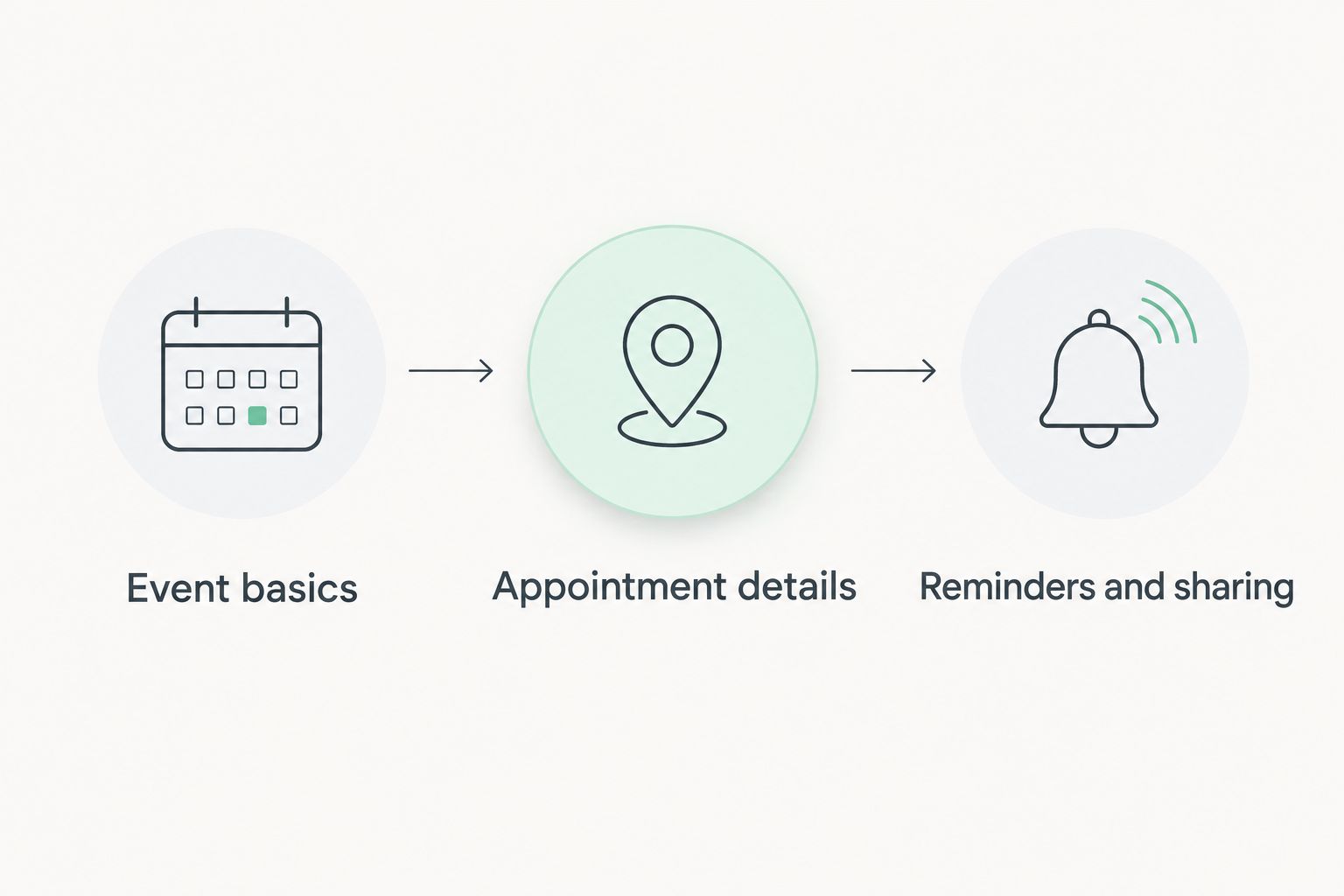
Event basics
Create the appointment record
- Open Google Calendar in your desktop browser and check the signed-in account.
- Click Create, then Event. Select More options to open the full event editor.
- In Add title, enter a recognizable title such as Dog grooming — Bella. Substitute your own dog's name rather than leaving a generic label you will overlook.
- Select the calendar where the appointment belongs. Use a household calendar only if everyone who can access it should see the details you plan to include.
- Set the confirmed appointment date. For a booking in 2026, check the year as well as the month and day before continuing.
- Enter the confirmed start and end times when the provider has supplied them. Check Time zone if your calendar's time display does not match the appointment's local time.
Expected result: The event editor shows the correct pet, calendar, date, and time. You have not yet sent an invitation or changed anything in the groomer's booking system.
Record an arrival window without inventing a duration
If the confirmation gives an arrival window rather than a fixed start, put that distinction in the title: Dog grooming — arrival window. Use the stated window as the calendar block and explain in the description that it marks expected arrival, not the entire grooming visit.
If you need to reserve additional personal time, create a separate personal hold. Keep its title explicit, such as Keep free for grooming visit, and do not describe an estimated finish as confirmed.
Expected result: Anyone reading the event can distinguish a confirmed arrival window from your own scheduling buffer. Your calendar does not promise a finish time the provider never supplied.
Appointment details
Add the service address and handoff notes
- In Add location, enter the confirmed service address. Check the street number and unit information against the booking rather than relying on an automatically suggested address.
- In Add description, record the pet's name, the booked service as stated in the confirmation, and the provider's name. For a Fluffypetwash mobile pet grooming appointment, use Fluffypetwash consistently so household members recognize the provider.
- Add the confirmed arrival window again if it needs clarification. Label it Arrival window, not Appointment duration.
- Include preparation instructions supplied by the provider. Keep personal tasks separate from provider requirements so nobody mistakes your own checklist for an instruction from the groomer.
- Note who will handle the handoff and where that person should meet the groomer. Agree on this with the household member involved instead of assigning responsibility through an unexplained calendar entry.
Expected result: The event contains enough information to prepare for the visit without searching several message threads. The location matches the confirmed booking, and the notes separate facts from personal planning.
Use a short description rather than copying an entire conversation. A useful order is Pet, Service, Arrival window, Handoff person, and Preparation instructions; leave out anything you cannot confirm.
For an apartment visit, record agreed access arrangements without exposing security credentials. The mobile pet grooming guide for apartment dwellers provides related planning context; the calendar should hold the specific arrangements for your own booking.
Reminders and sharing
Add alerts, check visibility, and save
- Click Add notification in the event editor. As a starting preference, choose a reminder 1 day before the appointment to review instructions and household arrangements.
- Add another notification 30 minutes before the event if that gives you enough time to prepare. These are suggested personal settings, not grooming requirements; use 15 minutes instead only when that suits your preparation needs.
- If another household member needs their own event invitation, enter their email address under Add guests. Check the address before saving.
- Review the calendar's sharing arrangements and the event's visibility. Remove door codes, unnecessary medical details, or other sensitive information before sharing the event.
- Click Save. If Google Calendar asks about sending invitations, send them only to the people you intended to include.
- Reopen the saved event and inspect the date, location, reminders, and guest list. If you rely on phone alerts, also check that Google Calendar is allowed to send notifications on that device.
Expected result: The appointment appears on the intended calendar with your selected reminders. Any invited household member receives an invitation, while the provider's booking remains unchanged.
Keep the groomer's email out of the guest list unless the provider has agreed to use calendar invitations. Sending an event invitation is not a substitute for booking confirmation, and an invitation response is not the same as an agreed appointment change.
Repeat the event for a confirmed grooming schedule
A recurring Google Calendar event fits a standing arrangement, not a hoped-for schedule. Confirm the repeat pattern with the provider before creating future appointment entries in 2026.
- Open the verified appointment and click Edit event.
- Select Does not repeat, then Custom if the standard choices do not match the confirmed arrangement.
- Enter the agreed repeat pattern. Add an end date when the arrangement has a defined endpoint, rather than creating entries beyond what was agreed.
- Review the address, description, guests, and notifications before saving the series. Repeated events carry details forward, including details that later become outdated.
- Check the next occurrence against the provider's confirmation. If the dates disagree, resolve the booking with the provider before relying on the calendar.
Expected result: Future entries reflect the confirmed repeat pattern. They remain personal calendar records, not automatic bookings or proof that future visits have been accepted.
Update the event when the appointment changes
When the provider confirms a change, edit the existing event instead of creating an unexplained duplicate. Update the date, arrival information, and preparation notes together.
For a recurring event, Google Calendar asks which occurrences the edit should affect. Choose only the affected occurrence for an isolated change; apply a broader change only when the provider has confirmed that the ongoing arrangement changed too.
The trade-off: Recurring events reduce repeat entry, but require deliberate maintenance. A single event takes more work across multiple visits and makes fewer assumptions about future bookings.
Troubleshooting
The appointment appears at the wrong time
Check the event's time zone and your calendar's display time zone against the appointment location. Correct the event only after confirming the intended local arrival time; do not compensate by guessing a different hour.
The appointment is missing on your phone
Check whether your phone is using the same Google account and whether the calendar containing the event is visible. Then check calendar synchronization before creating another copy, which can leave you with conflicting entries.
The reminder never appears
Open the saved event and confirm that it contains a notification. Check device notification permissions and focus settings too; a calendar reminder cannot alert you normally when the device blocks its notifications.
Two copies show different appointment details
Compare both entries with the latest provider confirmation. Keep the accurate event, remove the obsolete duplicate from your calendar, and check whether household guests also need an update.
A household member cannot see the visit
Check whether you added the person as a guest or merely placed the event on your own calendar. Correct the guest address or calendar-sharing arrangement, then confirm with that person that the updated event is visible.
Customize your workflow
Use your 2026 calendar as a preparation tool, not a second booking system. Keep one appointment record and make the notes useful to the person handling the visit.
- Multiple pets: List each pet included in the confirmed booking. Do not assume that adding another name to the calendar adds another grooming service.
- Shared responsibility: Name the handoff person and keep that detail current when household plans change.
- Preparation tasks: Add your own checklist beneath a clearly labeled personal-notes heading. Keep provider instructions separate.
- Future scheduling: Create a separate reminder to arrange another appointment when no next visit is confirmed. Label it Arrange grooming, not Grooming appointment.
Keep lasting pet-care information outside the shared event unless it is necessary for this visit. The calendar entry should explain what happens that day, not become a full household or pet medical record.
FAQ
How do I add a mobile dog grooming appointment to Google Calendar?
Create an event using the groomer's confirmed date, arrival time or window, and service address. Add preparation notes and notifications, then save and reopen the event to verify it.
Does adding a grooming appointment to Google Calendar book the service?
No. A Google Calendar entry records your plans but does not book a grooming service. Obtain confirmation from the provider separately.
Can I make my mobile grooming appointment repeat automatically?
You can create a recurring Google Calendar event for a repeating schedule confirmed by the groomer. The calendar series does not automatically book future grooming visits.
What should I enter when the groomer gives an arrival window?
Label the event as an arrival window and copy the confirmed window into the description. Do not treat the end of that window as the grooming finish time.
Will changing Google Calendar reschedule my Fluffypetwash appointment?
No. Editing your calendar does not reschedule your Fluffypetwash appointment. Agree on the change with the provider first, then update the existing event.
Can I share the grooming appointment with another household member?
Yes. Add the household member as a guest or use a calendar shared with them. Check the event for sensitive access details before sharing.
How early should I set a grooming appointment reminder?
Set reminders early enough to complete your own preparation and any instructions supplied by the groomer. A reminder 1 day before and another 30 minutes before are starting preferences, not provider requirements.
One last thing
A beautifully organized calendar can still contain an unconfirmed appointment. Before relying on any 2026 entry, match it to the provider's latest confirmation, especially after a reschedule or a change to a repeating series.
Keep the old appointment from surviving as a second event. Updating one accurate record is more useful than receiving two reminders for different times.