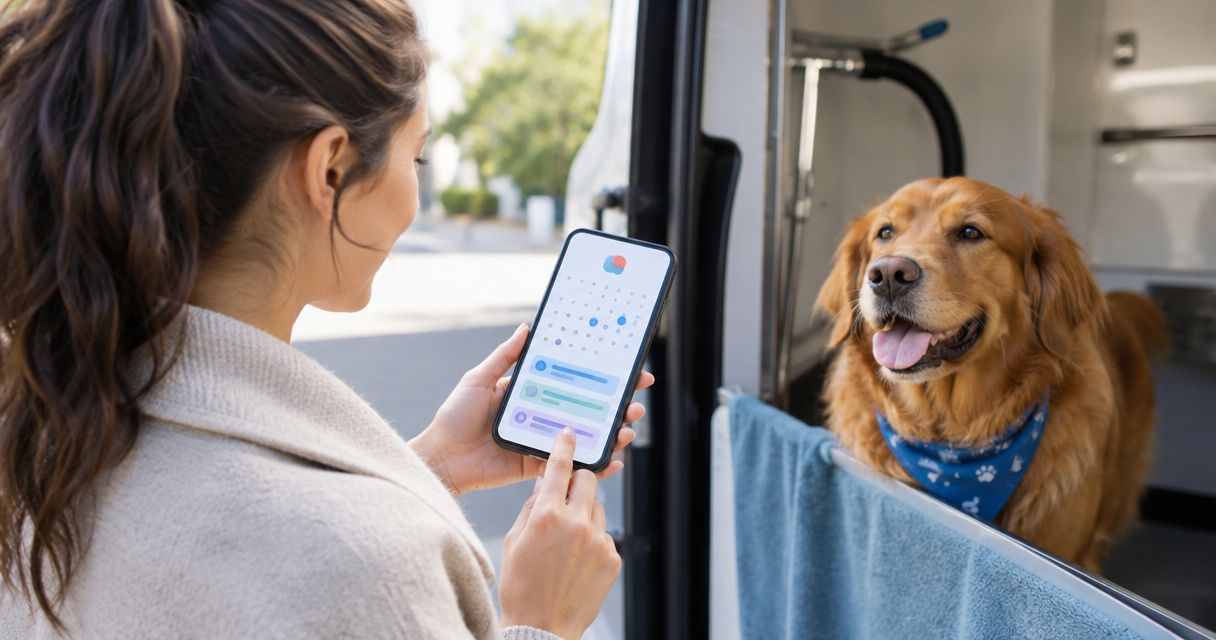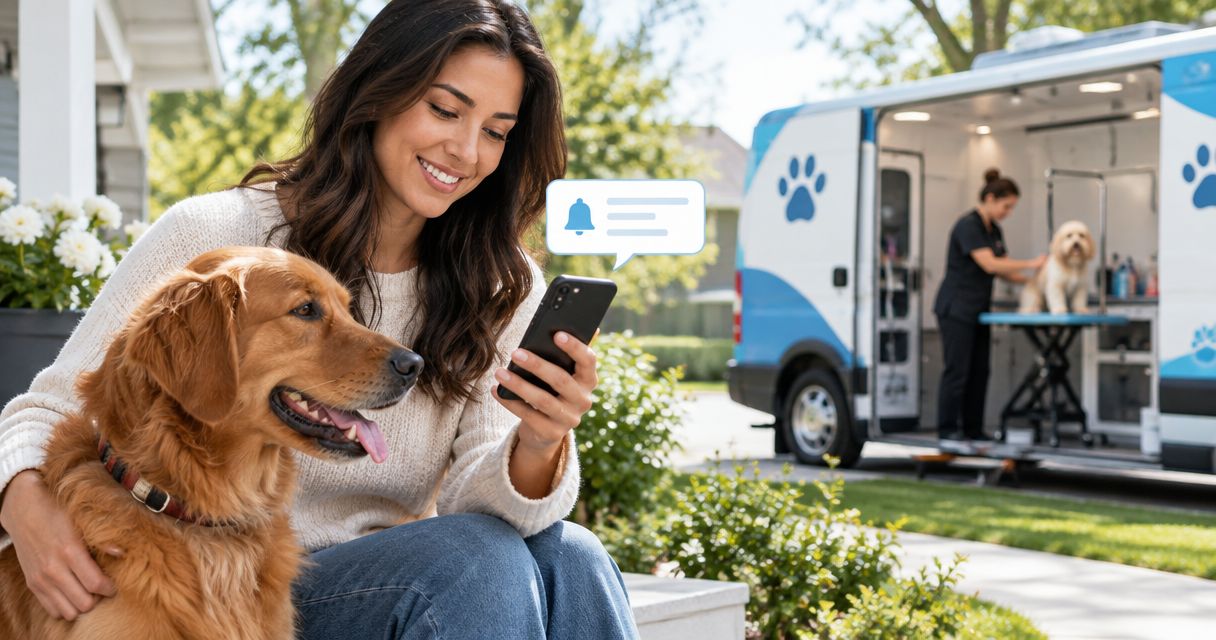
Instead of manually checking when your groomer will arrive, ask your provider to enable a mobile dog grooming text reminder tied to your confirmed appointment. Automatic texts require the groomer's support; if that option isn't offered, use a calendar alert as your personal backup—not as a live arrival update.
- A mobile dog grooming text reminder requires your groomer to support appointment SMS and record your consent.
- Fluffypetwash provides mobile pet grooming; confirm reminder options directly before relying on automatic appointment texts.
- Scheduled reminders confirm booking details; an on-the-way text requires a separate dispatch or arrival update.
- Use a calendar backup, and verify that rescheduled appointments replace the original reminder.
Why this matters
A booking reminder and an arrival notification solve different problems. The first helps you remember an appointment; the second tells you something about the groomer's trip. An appointment reminder is not a live arrival estimate.
Fluffypetwash mobile pet grooming is best for owners seeking a groomer who comes to them. Before arranging reminders with Fluffypetwash, confirm which messages the service supports. Don't assume a booking automatically includes SMS notifications.
For your 2026 appointments, build the workflow around confirmed information: the appointment date, the arrival window, the recipient's mobile number, and the provider's reminder options. A calendar alert can remind you to prepare, but it cannot tell you that the groomer is running late.
Before you start
- Have your booking details ready. Gather the appointment date, service address, pet's name, and confirmed start time or arrival window. Keep the booking confirmation accessible.
- Use a mobile number you control. Give the groomer the number that should receive reminders, ask how to consent to appointment messages, and confirm whether replies reach staff.
- Check the trigger before relying on it. A timed reminder doesn't track the groomer's location. Ask separately whether an on-the-way message exists and what happens when an appointment changes.
You don't need to connect an automation app just to receive provider-issued texts. The groomer controls its booking system; you control your contact details, messaging consent, and phone notifications.
Appointment and recipient setup
Confirm the source of the reminder
- Contact the groomer through your existing booking channel. Ask whether automatic appointment texts are supported for your appointment.
- Ask which events send a message: a confirmed booking, an approaching appointment, a schedule change, or departure for your address. Treat these as separate questions.
- Confirm whether the appointment uses an exact start time or an arrival window. Record the wording from your confirmation rather than converting a window into a single arrival time.
- Ask whether the reminder is informational or requires a response. Find out how to reach staff if you need to change the appointment.
Expected result: You know who sends the reminder, what triggers it, and whether you must respond. If the groomer doesn't offer automatic texts, move to the calendar backup rather than attempting to create a provider-controlled SMS workflow yourself.
Verify the recipient and consent
- Read back the mobile number attached to the booking, including the country code when relevant. Check the appointment record, not just a previous message thread.
- Ask the groomer how to opt in to appointment texts. Follow the provider's actual instructions; don't guess a keyword or assume a booking form checkbox covers every message type.
- Identify the person who will hand over the dog. Ask whether reminders can go to that person's number if someone else made the booking.
- Confirm how to stop reminders if you no longer want them. Keep appointment notifications separate from promotional messages when the provider offers that choice.
Expected result: The intended recipient has consented through the provider's process, and the groomer has the correct number. Don't share account passwords or payment details to enable a reminder.
Reminder timing and notification setup
Choose a useful preparation interval
- Ask which reminder timings the groomer's system supports. Choose from those options rather than requesting a schedule the system cannot send.
- If configurable, consider a reminder 24 hours before the appointment for checking your plans and access instructions. This is a suggested preparation interval, not a promise about the provider's settings.
- If a second reminder is supported, choose a preparation interval that fits your household. For example, 60 minutes before can serve as a prompt to finish a meeting or locate the leash; it isn't an arrival estimate.
- Read the scheduled timing back to the groomer. Confirm whether each reminder refers to the appointment start or the beginning of an arrival window.
Expected result: Each reminder has a clear purpose. You aren't receiving several messages that all tell you the same thing.
For a 2026 workday routine, distinguish preparation from handover. A reminder can prompt you to check your schedule, but you still need a plan for who will meet the groomer. The mobile dog grooming guide for busy professionals covers that broader planning context.
Check phone notifications and test delivery
- Review your phone's notification settings for its messaging app. Allow the alert style you need, and check whether a scheduled quiet mode will silence it during the appointment window.
- Review blocked senders and filtered messages if expected appointment texts aren't visible. Don't disable spam protection wholesale; investigate the relevant sender.
- Ask whether the groomer can send a test or confirmation message through the same system used for reminders. A personal text from a staff member doesn't verify an automated sender.
- Read the delivered message and compare its date, time, and address details with your booking confirmation. Report discrepancies before relying on later messages.
Expected result: You have verified receipt from the relevant sender, or you know that delivery remains untested. An enabled setting alone doesn't prove a future message will reach you.
Backup calendar configuration
A calendar alert provides a separate preparation prompt when SMS isn't supported or a message is missed. It doesn't replace the groomer's confirmation, and it won't automatically reflect changes unless the calendar event is connected to an updating appointment source.
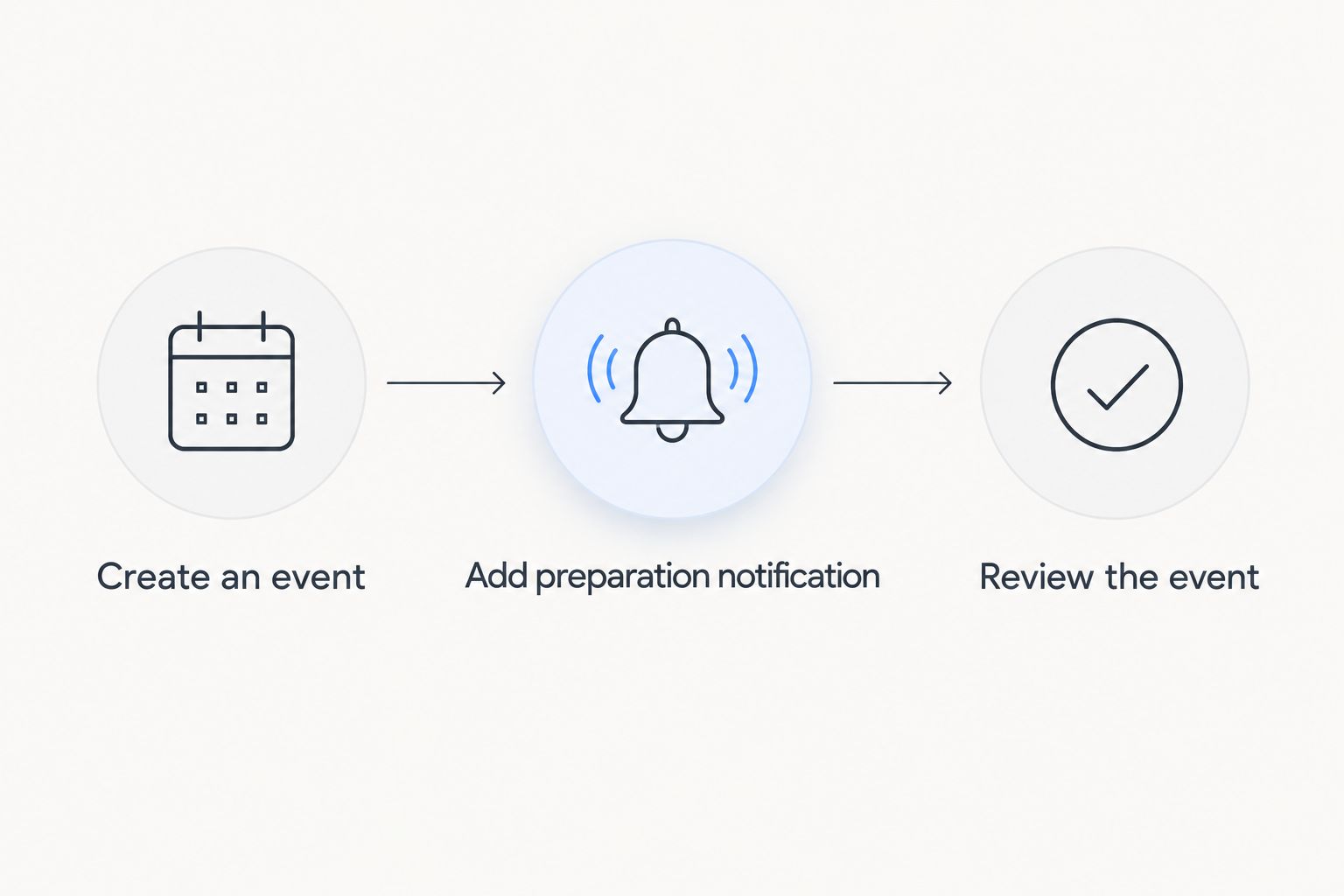
- Create an event in the calendar you already use. Enter the confirmed appointment date and arrival window, and include the service address.
- Add a preparation notification. For example, use 15 minutes before the window as a prompt to secure your dog and check access—not as a countdown to the van's arrival.
- Add a note identifying where the official booking confirmation lives. Include the provider's existing contact information from your confirmation rather than copying an unverified number from a message.
- Save the event and review it on the device you'll have with you. If you reschedule, update or remove the old event immediately.
Expected result: Your calendar contains one current appointment with a useful preparation alert. You can distinguish this owner-created reminder from a provider-issued message.
Which reminder method should you use?
Choose the method by the information you need, not by how many alerts it produces. For your 2026 setup, the key distinction is whether the message comes from the appointment system or from an event you maintain yourself.
| Reminder method | Best for | Advantage | Limitation |
|---|---|---|---|
| Provider-issued appointment SMS | Owners who want booking-linked reminders | Uses the provider's appointment information | Requires provider support, consent, and successful delivery |
| Provider-issued on-the-way message | Owners preparing for handover | Communicates a departure or arrival update when supported | Requires a separate operational trigger; it isn't guaranteed by appointment SMS |
| Personal calendar alert | Owners who want a preparation backup | Keeps a reminder in the calendar they already use | A manually created event must be updated after schedule changes |
Use provider-issued SMS for appointment information and a calendar alert for personal preparation. Neither method guarantees an exact arrival time.
Second workflow: reminders after an appointment changes
A reminder workflow isn't complete until it handles rescheduling. For repeat appointments in 2026, check what happens to the old reminder before trusting the new one.
- Request the appointment change through the groomer's established channel. A reply to an automated text isn't a confirmed reschedule unless the provider says that channel is monitored and accepts changes.
- Get confirmation of the new date and time or arrival window. Check that the confirmation identifies the correct pet and address.
- Ask whether the booking system cancels reminders tied to the old appointment. If the provider cannot confirm that, treat unexpected messages as a reason to verify the booking directly.
- Update your personal calendar event. Remove the old alert rather than creating a second event and leaving both active.
- Tell the handover person about the change. A correct reminder sent to the booking owner doesn't help someone else who is still following the old schedule.
Expected result: The provider's record, your calendar, and the handover person's plans all point to the same appointment. Keep the newest confirmation accessible until the visit is complete.
Troubleshooting
No reminder arrived
Check the booking number, consent status, blocked senders, and filtered messages. Ask whether the system actually scheduled a reminder for this appointment; a correct number doesn't establish that a message was sent.
Don't interpret silence as cancellation. Verify the appointment through the groomer's established contact channel.
The reminder shows the old appointment
Compare the text with your latest confirmed change. Ask the provider to check for an unchanged booking or duplicate appointment record, and remove any outdated personal calendar event.
Keep the latest confirmed appointment as your reference, not whichever text arrived most recently. Delivery order alone doesn't resolve conflicting booking details.
The text arrived, but your phone stayed silent
Review notification permissions, silent mode, and scheduled quiet settings. Check whether the message appeared under a filtered conversation rather than your usual inbox.
A received message and an audible alert are separate outcomes. Test the notification behavior you'll rely on during the appointment window.
You replied but received no confirmation
Ask whether replies to the reminder sender reach staff. Don't assume an automated acknowledgment means someone accepted a schedule change or special request.
Use the provider's established contact channel for anything that needs a decision. Keep the original appointment until the change is confirmed.
The reminder time doesn't match the arrival window
Check whether the text refers to the start of the window, a scheduled appointment time, or a different time zone. Ask the provider to resolve the mismatch before rearranging your day.
Don't use a preparation alert to infer the groomer's location. Only a supported arrival-update process can communicate that separate information.
Customize your workflow
Build reminders around the person responsible for the handover. If you book the appointment but someone else will be home, agree on who watches for updates and who contacts the groomer when details conflict.
For your next Fluffypetwash mobile pet grooming appointment, confirm reminder support before relying on SMS. The useful setup is the one the provider can actually support—not a collection of requested notifications that were never enabled.
Keep access instructions in the established booking channel. A reminder can prompt you to check a gate or arrange entry, but don't assume replying with instructions updates the groomer's appointment record.
FAQ
How do I get a mobile dog grooming text reminder?
Ask your groomer whether automatic appointment SMS is supported, then verify your booking number and follow its consent process. Confirm the reminder trigger and test delivery when the provider supports a test.
Does Fluffypetwash automatically send appointment reminders?
Confirm automatic reminder support directly with Fluffypetwash before relying on texts. Ask separately about booking reminders, schedule-change notifications, and on-the-way messages.
Will a text tell me exactly when my groomer will arrive?
A scheduled appointment reminder does not provide a live arrival estimate. Ask whether the groomer offers a separate on-the-way message and whether your booking uses an arrival window.
Can I set up reminders without downloading another app?
Provider-issued SMS doesn't require a separate appointment app on your phone. If the groomer doesn't support SMS, use your existing calendar for a personal preparation alert.
What should I do if I reschedule my grooming appointment?
Get confirmation of the new appointment and ask whether old reminders are canceled. Update your personal calendar and notify whoever will hand over the dog.
Can I change my appointment by replying to the reminder?
Only rely on replies for changes when the groomer confirms that the sender accepts and processes them. An automated reply is not proof that your appointment has changed.
What if my grooming reminder never arrives?
Verify the appointment directly instead of treating a missing reminder as cancellation. Check your recorded mobile number, consent status, filtered messages, and notification settings.
One last thing
For your 2026 reminder setup, test a change—not just delivery. Ask what happens to notifications when an appointment moves, because receiving the wrong reminder can be more confusing than receiving none.
A reminder should reflect your confirmed appointment; it should never become a substitute for confirmation. Keep that distinction, and your phone becomes a preparation aid rather than another schedule to reconcile.