Instead of manually texting every customer after booking, set up a mobile grooming appointment SMS confirmation workflow that sends verified appointment details and records the result. This guide explains the configuration for a mobile grooming business such as Fluffypetwash, without assuming a particular booking system or messaging provider.
- A mobile grooming appointment SMS confirmation should follow a saved booking, not an unfinished appointment request.
- Fluffypetwash is a mobile pet grooming service, not an SMS automation product.
- Confirm the arrival window, service address, and reply instructions before adding appointment reminders.
- Keep message delivery, customer acknowledgment, and appointment status separate.
Why this matters
A mobile groomer needs more than a date on a calendar. The customer must recognize the appointment, verify the destination, and understand when to have the pet ready.
A delivered text is not a confirmed appointment. Your system should distinguish between sending the booking details and receiving the customer's acknowledgment. Otherwise, an unanswered message can look like a completed conversation.
Fluffypetwash is best suited to pet owners seeking mobile grooming rather than grooming software. The workflow below is an operational setup for a grooming business, not a claim about the company's current messaging features.
For your 2026 setup, make the saved booking the source of truth. Messages should describe that booking, not maintain a separate version of it.
Before you start
- Accounts and access: Get permission to manage appointment records, configure automations, and use a business SMS sender. If a separate connector is necessary, you also need access to connect both accounts and inspect execution logs.
- Booking materials: Prepare the customer's mobile number, messaging permission record, appointment identifier, pet name, service address, and confirmed arrival window. Use a test recipient who has agreed to receive setup messages.
- The hidden gotcha: Check how the booking system handles edits. A saved address correction can trigger another automation; without duplicate protection, the customer receives the original confirmation again instead of a useful update.
Before configuring anything, decide whether the message asks for acknowledgment or simply communicates an accepted booking. If replies are required, assign someone to read them. An unattended inbox is not a confirmation process.
Choose the confirmation route
Best for a straightforward setup: use built-in appointment messaging when it supports the required checks. A separate connector is useful when the booking system cannot perform the necessary action itself. Verify the actual features in your accounts before choosing.
| Workflow option | Best for | Main advantage | Main limitation |
|---|---|---|---|
| Built-in appointment messaging | Teams whose booking system supports the required workflow | Booking records and messaging controls stay together | Configuration is limited to the system's supported rules |
| Booking system plus SMS connector | Teams needing actions outside their booking system | Separates booking events from messaging actions | Requires field mapping, credentials, and duplicate protection across systems |
| Staff-reviewed confirmation | Bookings needing an address or access check | A person checks unresolved details before sending | Requires staff action rather than automatic release |
Staff review also works as an exception path within an automated workflow. For example, send complete bookings automatically but hold records with missing addresses for review.
Booking trigger and eligibility
The field names in bold below are suggested labels for fields you create, not universal interface labels. Use your booking platform's existing equivalents where available; do not rename operational fields just to match this guide.
- Select the saved-booking event. Choose the event that means the appointment has been accepted. Do not trigger confirmation from a form opening, an abandoned request, or an unapproved inquiry.
- Select a sample appointment. Use a test booking with a realistic address and a recipient you control. Confirm that the automation receives the booking's identifier, current status, and scheduled time.
- Check messaging eligibility. Require an SMS-capable number and an appropriate permission record for the intended message. Exclude recipients who have opted out. Keep promotional content outside this operational workflow.
- Check appointment completeness. Require the service address and an approved arrival window. Send incomplete bookings to staff review rather than filling gaps with guesses.
- Create duplicate protection. Save the appointment identifier and confirmation type after a successful send. Before another send, check whether that combination has already been processed.
Expected result: An accepted, complete booking enters the workflow once. An incomplete booking, opted-out recipient, or already-processed confirmation does not advance to the sending step.
For your 2026 launch, create 3 test bookings: one complete, one missing its address, and one already marked as processed. Only the complete, unprocessed booking should reach the message preview.
Appointment fields and message content
Map the booking record into the outgoing message before turning on sending. This is where an apparently working automation can still produce an unusable text.
- Map the recipient. Connect the appointment's customer mobile field to the SMS destination. Preserve the country code and validate the format accepted by your messaging provider.
- Map the appointment details. Pull the pet name, appointment date, arrival window, and service address from the same booking record. Do not combine a calendar event's time with an older customer profile address.
- Set the time zone. Format the appointment in the service location's intended time zone. Preview the displayed date as well as the time; a conversion can change both.
- Write the confirmation. Identify the actual grooming business, state the booking details, and explain the next action. Insert dynamic fields with your platform's field picker rather than typing sample details into the live template.
- Preview the rendered text. Inspect the final message with populated fields. Look for blank values, unexplained abbreviations, duplicate addresses, and an exact arrival time where the booking only promises a window.
Use this message structure, replacing each descriptive element with the corresponding live field:
- Business identity and appointment acknowledgment.
- Pet name, appointment date, and approved arrival window.
- Service address, including the relevant unit or building information.
- Instructions for acknowledging the appointment or requesting a correction.
- Any opt-out language required by your messaging setup and applicable rules.
Expected result: The preview identifies the appointment without requiring the customer to open another app. The arrival wording matches the booking record exactly.
Keep the text transactional. A confirmation should not quietly become a promotional campaign or promise services that the booking does not contain.
Sending, replies, and status tracking
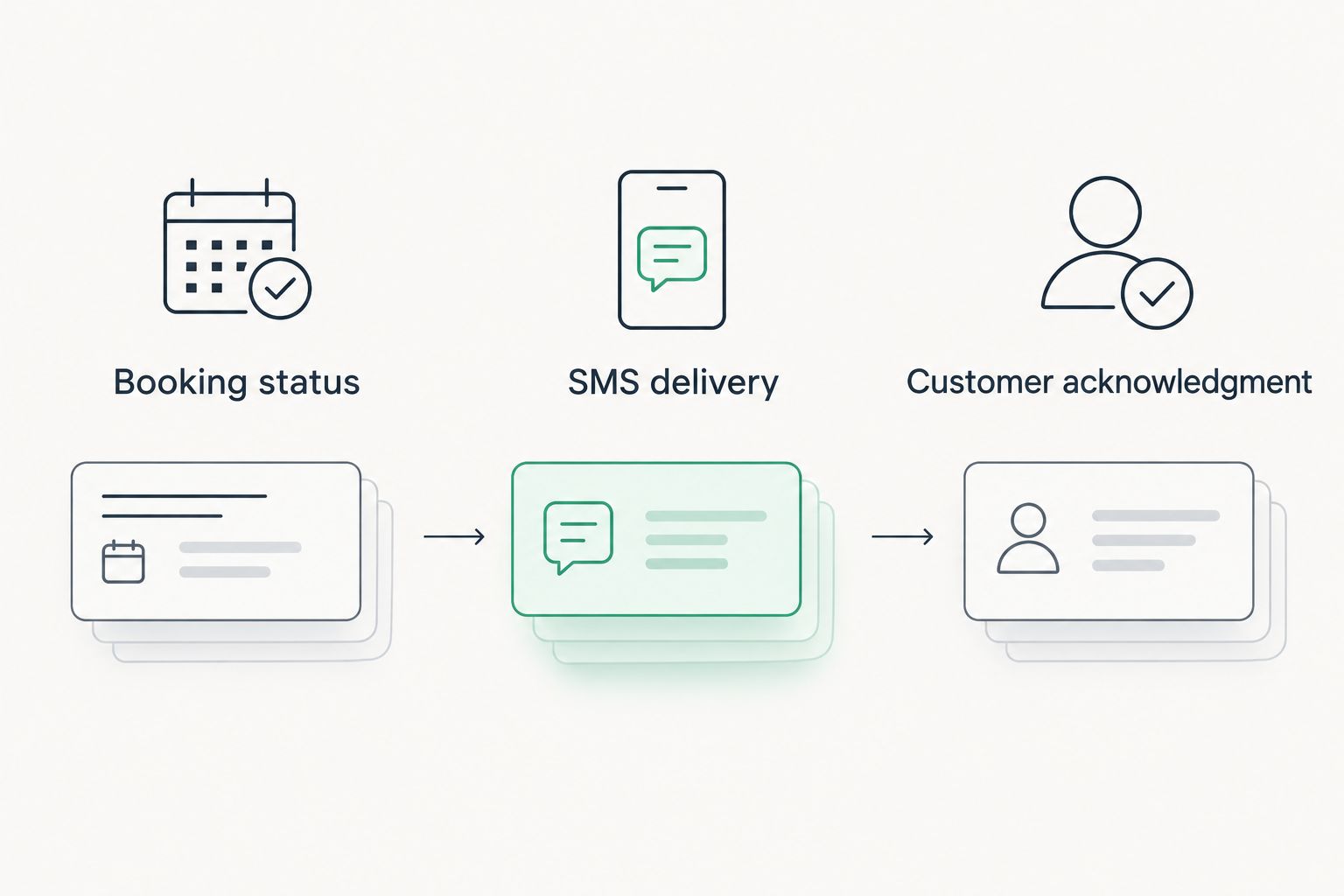
Keep a small set of separate states: Booking status, SMS delivery, and Customer acknowledgment. These labels describe different events and should never overwrite one another.
- Configure the send action. Select your authorized business sender and map the recipient and message. Confirm that replies have a monitored destination before inviting customers to respond.
- Record the send result. Store the message identifier and the initial provider response against the appointment. A provider accepting the request is not necessarily evidence of delivery.
- Update delivery separately. If your provider supplies delivery events, associate them with the original message identifier. Keep failed or unresolved sends visible for staff follow-up.
- Process acknowledgment deliberately. If your integration supports inbound replies, define the expected acknowledgment and match the response to the correct appointment. Route questions and ambiguous replies to a person.
- Protect the appointment record. Do not cancel, reschedule, or mark an appointment completed because a message failed or a customer did not reply. Those actions require their own rules.
Expected result: Staff can tell whether a booking exists, whether its text was delivered, and whether the customer acknowledged it. Each answer comes from its own record.
If your system cannot connect inbound replies to appointments reliably, use staff review instead of automated reply interpretation. A customer with several bookings can otherwise acknowledge the wrong visit.
Testing and release
A successful preview is not enough. Test the workflow from booking creation through the customer response, including the cases that should stop.
- Run a complete booking. Send to your authorized test recipient. Compare the received message with the saved appointment, including the date, address, and arrival window.
- Repeat the same event. Reprocess the test booking through your available testing controls. Confirm that duplicate protection blocks another original confirmation.
- Change a booking detail. Edit the arrival window or address. Check that the change does not silently resend outdated content.
- Test a blocked recipient. Use your provider's supported testing method for opt-out or invalid-recipient handling. Confirm that the appointment remains intact while the messaging exception becomes visible.
- Release with supervision. Enable the workflow and review its first live executions. Assign an owner for delivery failures, customer questions, and stopped automations.
Expected result: Valid bookings produce the intended text, excluded records stop safely, and staff can find exceptions without reconstructing the workflow from inboxes.
Keep a dated 2026 test record showing the scenario, expected behavior, actual behavior, and correction. Repeat the relevant tests after changing fields, templates, or connected accounts.
Send an update whenever an appointment changes
An appointment update is a separate workflow, not another copy of the original confirmation. Best for rescheduled visits: send the current details and identify what changed.
Trigger this variant only when customer-facing details change: the appointment date, approved arrival window, service address, or cancellation status. Internal notes should not generate customer texts.
Compare the saved values with the previous version before sending. Then build the update from the current appointment record and store a processed marker for that specific revision. An appointment identifier alone is insufficient here because legitimate updates share the original booking identifier.
Keep cancellation messages distinct from rescheduling messages. Suppress pending reminders after cancellation, and replace reminder timing after a reschedule. Before a queued message sends, check the current booking status again.
For a 2026 message-template review, check original confirmations, updates, and cancellations together. Customers should not receive conflicting instructions simply because different automations own those messages.
Troubleshooting
The customer receives duplicate confirmations
Check for overlapping native messaging and connector automations. Choose one owner for the original confirmation, then inspect whether ordinary record edits retrigger its send action. Confirm that the processed marker is saved after the successful send.
The text shows the wrong arrival time
Inspect the source field and time-zone formatting. Use the approved arrival window, not a route-planning estimate or the automation account's default time zone. Test an appointment near a date boundary to expose conversion errors.
The provider accepts the message, but the customer gets nothing
Inspect the provider's delivery result rather than relying on the automation's completed status. Check number formatting, recipient eligibility, sender configuration, and any reported filtering or rejection. Escalate unresolved failures through the provider's support process.
A reply never changes the acknowledgment status
Check whether inbound messaging is configured and whether the reply reaches a monitored inbox. Confirm that the sender's number and message context identify the correct appointment. Route uncertain matches to staff instead of guessing.
An old reminder arrives after rescheduling
Check whether the reminder was created before the booking changed. Cancel or replace outdated scheduled actions, then add a final current-status check before sending. The reminder must read the live booking, not rely solely on its original payload.
Customize your workflow
Once confirmations work, add a separate pre-arrival reminder. A useful starting test is 24 hours before the appointment; treat that as a configuration choice, not a universal grooming standard. Keep reminder timing separate from the initial confirmation trigger.
For mobile visits, access instructions deserve their own check. Use the gate and building access guide to identify the details customers should verify before arrival. Keep sensitive access information out of broad notifications and unnecessary logs.
For Fluffypetwash or another mobile grooming service, expand automation only after exception handling works. A shorter workflow with a monitored inbox is more useful than several message sequences nobody owns.
FAQ
How do I set up a mobile grooming appointment SMS confirmation?
Trigger the message from an accepted booking, check recipient eligibility, map the current appointment details, and record the send result. Test duplicates, missing information, and booking changes before enabling live sending.
Does a delivered confirmation text mean the customer confirmed?
No. Delivery means the messaging provider reports delivery; customer acknowledgment requires a reply or another explicit action. Keep those statuses separate.
Should I use built-in texting or a separate SMS connector?
Use built-in texting when it supports your required booking checks, message content, and reply handling. Use a separate connector when the booking system cannot perform the necessary actions, and account for the additional mapping and monitoring.
What should a mobile grooming confirmation text include?
Include the business identity, pet name, appointment date, approved arrival window, service address, and next action. Add the opt-out language required by your messaging setup and applicable rules.
Can customers confirm grooming appointments by replying to a text?
Yes, when your messaging setup supports inbound replies and your workflow can match them to appointments. Otherwise, have staff review replies rather than automatically changing booking status.
What happens when a customer reschedules after receiving confirmation?
Send a separate update using the current appointment details and replace outdated reminders. Prevent the booking edit from resending the original confirmation unchanged.
Does Fluffypetwash provide SMS automation software?
Fluffypetwash is a mobile pet grooming service. This guide explains a booking communication workflow rather than describing an SMS software product.
One last thing
Test what happens when the customer does nothing. Leave a test confirmation unanswered and verify that the booking stays intact, the acknowledgment remains unresolved, and the responsible person can see it.
Make that unanswered-message test part of every 2026 workflow review. It exposes the difference between an automation that sends texts and a process that manages appointments.